Kling 3.0 is a video generation model developed by Kuaishou. In StoReel Canvas it is available as Kling v3 and Kling o3 (the Omni variant), each in Standard and Pro. Use it for dialogue and audio-led scenes once your storyboard is approved.
StoReel Canvas TeamReviewed by StoReel Canvas Product TeamUpdated
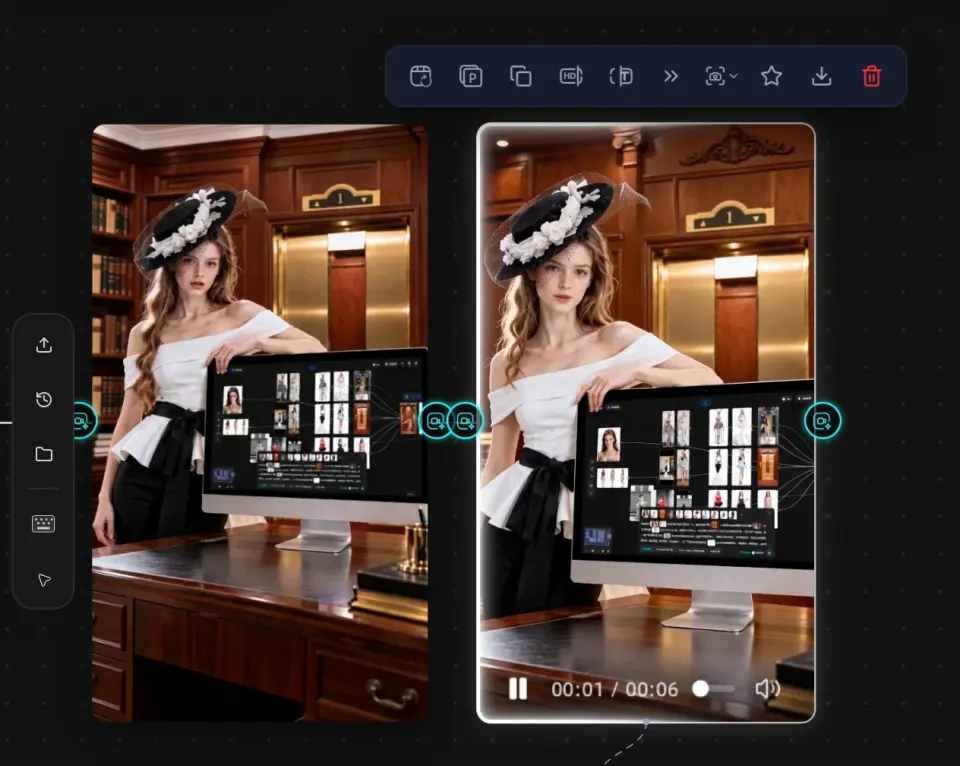
A Kling 3.0 dialogue scene generated from a StoReel Canvas storyboard panel.
What is Kling 3.0?
Kling 3.0 is a video generation model from Kuaishou Technology, announced on 6 February 2026. The announcement describes one model family that works across text, image, audio and video.
StoReel Canvas is an AI-native creation platform for AI short dramas, covering script, storyboard, voiceover and video generation in one workflow. This page explains where Kling 3.0 fits in that workflow. It is not the developer's page.
What does Kling 3.0 do, according to the developer?
These are Kuaishou's statements about the model, not a list of StoReel Canvas features. Check the options shown for each model in your project to see what you can use there.
The developer states that videos can run up to 15 seconds.
The developer states that the model generates native audio in multiple languages, dialects and accents. It does not name which ones.
It accepts text, image, audio and video input.
It covers text-to-video, image-to-video, reference-to-video and in-video editing.
The announcement does not state a resolution, so this page does not give one.
When should I use Kling 3.0 for a scene?
Use it when the scene is carried by what characters say. A dialogue scene depends on speech and audio, so it makes sense to generate it after the storyboard is approved and the shot, the characters and the line are already decided. This is a workflow suggestion, not a quality claim.
Here is a small test you can repeat on any scene:
Pick one storyboard panel with two characters and a spoken exchange, such as two people across a kitchen table.
Write the line of dialogue into the prompt, along with who speaks and the tone.
Generate the panel with one Kling model, then again with another.
Watch and listen to both clips. Check whether the speaker matches the line, whether the voice suits the character, and whether the scene still matches the panel.
Judge the clips by what you see and hear in your own project. Nothing here ranks one model above another.
How do I use Kling 3.0 inside StoReel Canvas?
You choose a Kling model for a scene after the script and storyboard are in place. The workflow runs in this order:
Choose a Kling model for the scene and generate it.
Review the clip against its storyboard panel, adjust the prompt or the model, and generate again if the scene does not match.
Each scene can use a different model, so a project does not have to commit to Kling 3.0 from start to finish. The full process, from idea to finished episode, is covered on the AI short drama generator page.
Which Kling 3.0 models are in StoReel Canvas?
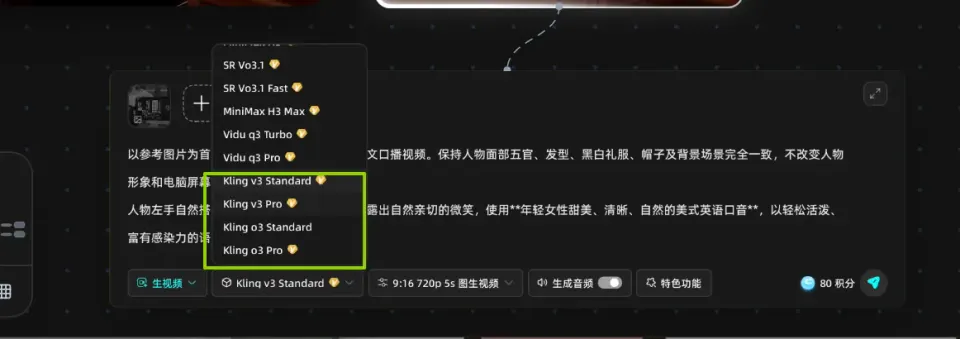
StoReel Canvas offers four Kling 3.0 models: Kling v3 Standard, Kling v3 Pro, Kling o3 Standard and Kling o3 Pro. Each is a separate model. Standard and Pro are names of separate models, not quality levels or price levels, and neither is better or cheaper than the other by name alone.
Kling v3 and Kling o3 appear in the model selector, each in Standard and Pro.
Which Kling 3.0 models are in StoReel Canvas?
Model
In StoReel Canvas
Kling v3 Standard
Available in StoReel Canvas as a separate Kling 3.0 model
Kling v3 Pro
Available in StoReel Canvas as a separate Kling 3.0 model
Kling o3 Standard
Available in StoReel Canvas as a separate Kling 3.0 model, the Omni variant of Kling
Kling o3 Pro
Available in StoReel Canvas as a separate Kling 3.0 model, the Omni variant of Kling
What is the difference between Kling v3 and o3?
Kling o3 is the Omni variant of Kling, and Kling v3 is the non-Omni variant. This page does not describe what Omni adds, because the developer's announcement does not explain it. Read the developer's information for specifics.
To see the difference on your own material, run the same storyboard panel through Kling v3 and Kling o3 with the same prompt, then compare the clips.
Kling 3.0 or another model?
Choose by what the scene needs. Kuaishou states that Kling 3.0 videos run up to 15 seconds. ByteDance describes Seedance 2.5 as built for 30-second storytelling, so a scene that needs more than 15 seconds in one generation is worth testing there. Durations available in StoReel Canvas can differ from the developers' figures, so check the options in your project.
Kling 3.0 is a video generation model developed by Kuaishou, announced on 6 February 2026. The developer states that it makes videos up to 15 seconds long with native audio and accepts text, image, audio and video input. In StoReel Canvas it is available as Kling v3 and Kling o3, each in Standard and Pro.
What are Standard and Pro in StoReel Canvas?
Standard and Pro are separate models, available for both Kling v3 and Kling o3. That gives four models: Kling v3 Standard, Kling v3 Pro, Kling o3 Standard and Kling o3 Pro. The names identify different models, not price or quality levels. Choose the one you want in your project before you generate a scene.
What is the difference between Kling v3 and o3?
Kling o3 is the Omni variant of Kling, and Kling v3 is the non-Omni variant. Each is its own model in StoReel Canvas. This page does not describe what Omni adds, so read the developer's information for specifics, then run the same storyboard panel through both and compare what you get.
Does Kling 3.0 generate audio?
The developer states that Kling 3.0 generates native audio in multiple languages, dialects and accents. Which audio options appear in StoReel Canvas depends on the model you select, so check the options in your project. Listen to every clip before you move on, because audio results vary from scene to scene and are not guaranteed.
How do I use Kling 3.0 in a project?
Finish your script and storyboard first. Then choose a Kling model for the scene that carries dialogue, write the spoken exchange into the prompt, and generate. Compare the clip with its storyboard panel and generate again if it does not match. You need a StoReel Canvas account to start, and sign-in uses email or Google.
Can I keep the same characters across scenes?
Use the character consistency feature in StoReel Canvas to reuse the same character across scenes, and set up your characters before you generate. Results depend on the model and the references you provide, so check each clip against your character reference before you move on to the next scene.
Where is the official Kling 3.0 information?
Kuaishou announced Kling 3.0 in a press release dated 6 February 2026, carried by Bernama and linked in the Learn more section of this page. StoReel Canvas does not publish the developer's documentation, so use that source for model specifications.
Start your next dialogue scene
Pick Kling v3 or Kling o3, in Standard or Pro, for the scene that needs to speak, and keep the rest of your AI short drama in one project.