Create Characters and Scenes With Image 2.5 Inside StoReel Canvas
Image 2.5 is an image generation model developed by OpenAI. In StoReel Canvas it is available as Image 2.5 Pro and Image 2.5 Fast, two separate models. Use them to generate characters, scenes and props in 1K, 2K or 4K, then carry them into your storyboard.
StoReel Canvas TeamReviewed by StoReel Canvas Product TeamUpdated
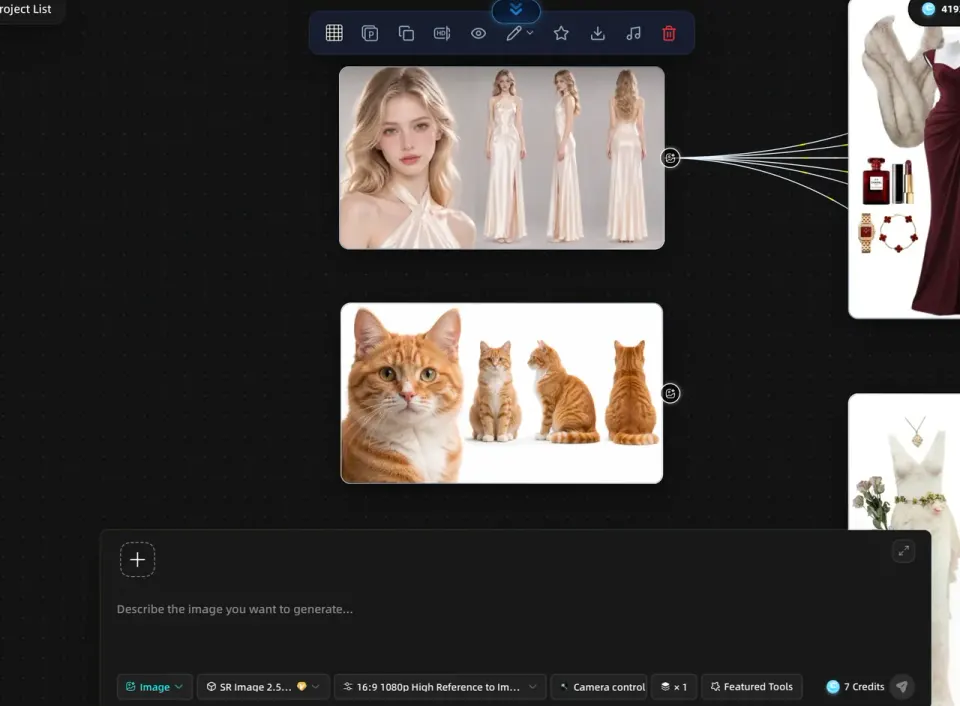
A character reference sheet generated with Image 2.5 in StoReel Canvas.
What is Image 2.5?
Image 2.5 is an image generation model from OpenAI. OpenAI announced it on 8 September 2026 as ChatGPT Images 2.5.
StoReel Canvas is an AI-native creation platform for AI short dramas, covering script, storyboard, voiceover and video generation in one workflow. This page explains how Image 2.5 fits in that workflow. It is not the developer's page. The announcement is linked under Learn more, and it is the place to check model specifications.
What does Image 2.5 do, according to the developer?
These are statements from OpenAI's announcement of 8 September 2026, read on 14 November 2026, not a list of StoReel Canvas features. Check the options shown for each model in your project to see what you can use there.
Sharper details and more natural lighting and textures.
Better at preserving subjects from reference photos, so subjects look more recognizable and distinctive features carry through more often.
More precise editing: it changes what you asked for and keeps other details the same.
More reliable instruction following across editing turns, so earlier changes are more likely to persist.
The announcement does not state image sizes. The sizes on this page are the output options in StoReel Canvas.
How do I create a character with Image 2.5 in StoReel Canvas?
Describe the character once, generate a reference, and reuse it. A character reference is the image you check every later panel against, so it is worth getting right before you storyboard. To keep the same character across scenes, set up the character before you generate scenes.
Here is a repeatable example:
Write a short character description, for example a woman in her late twenties, dark hair tied back, in an olive trench coat.
Ask for a reference sheet on a plain background, showing the front, three-quarter and profile views of the same character.
Generate it with Image 2.5 Pro and again with Image 2.5 Fast, using the same prompt.
Compare the two sheets: do the face, hair and coat stay the same across all three views?
Keep the sheet that holds together best, and use it as the reference for every panel that features the character.
The same approach works for a location or a prop. Keep one reference per subject.
Which Image 2.5 models are in StoReel Canvas?
StoReel Canvas offers Image 2.5 Pro and Image 2.5 Fast. Each is a separate model. The names do not set a quality level or a price level, so compare the results in your own project. Image 2 is an earlier OpenAI model, listed here for context.
Which Image 2.5 models are in StoReel Canvas?
Model
In StoReel Canvas
Image 2.5 Pro
Available in StoReel Canvas as a separate Image 2.5 model
Image 2.5 Fast
Available in StoReel Canvas as a separate Image 2.5 model
Image 2
An earlier OpenAI image model, listed for context
What image sizes are available?
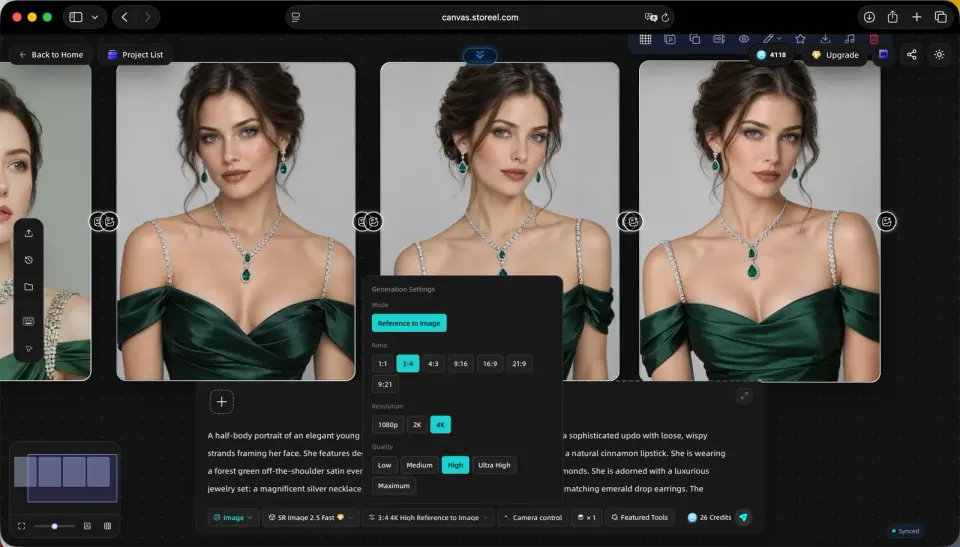
Images can be generated at 1K, 2K or 4K. Choose the size by where the image will be used, and check fine detail before you commit to one.
The same frame at 1K, 2K and 4K, left to right, cropped to the same region.
How do I use the images in my storyboard?
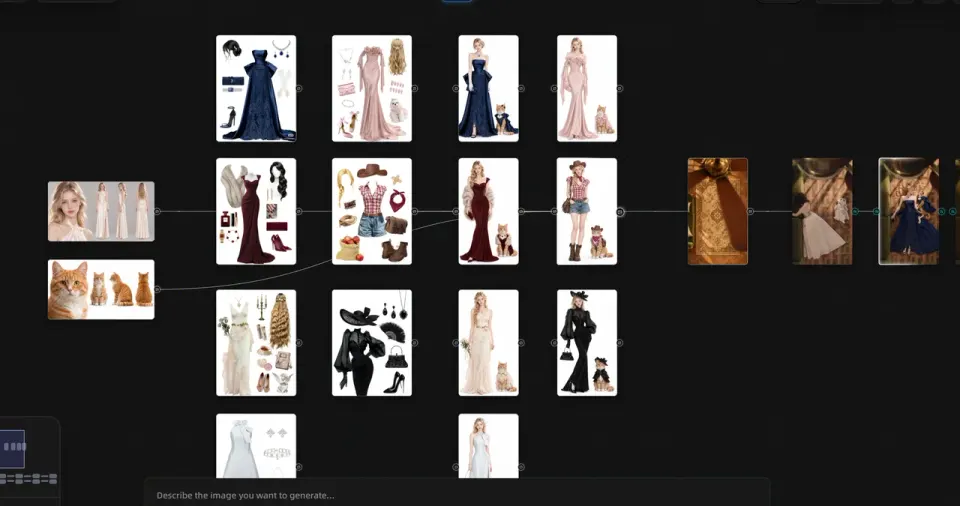
Generate the character, location or prop first, then place it into a storyboard panel and check it against the script line beside it. The AI storyboard generator shows how panels work. If the character does not match in a panel, adjust the prompt or choose the other model before you move on.
The Image 2.5 character placed into a storyboard panel next to its script line.
When the panel is set, choose a video model to generate the scene, such as Seedance 2.5. The full process, from script to finished episode, is on the AI short drama generator page.
How is Image 2.5 different from video models?
Image 2.5 makes still images. A video model makes moving clips. Use Image 2.5 to fix how a character, location or prop looks, then use a video model for motion and audio. Neither replaces the other.
Image 2.5 is an image generation model developed by OpenAI. OpenAI announced it as ChatGPT Images 2.5 on 8 September 2026. In StoReel Canvas you can use Image 2.5 Pro or Image 2.5 Fast to generate characters, scenes and props, then carry them into your storyboard.
What are Image 2.5 Pro and Fast in StoReel Canvas?
Image 2.5 Pro and Image 2.5 Fast are two separate Image 2.5 models that you can choose in StoReel Canvas. The names identify different models, not quality or price levels. Generate the same prompt with both and compare the results before you pick one for a character or a scene.
What image sizes are available?
Images in StoReel Canvas can be generated at 1K, 2K or 4K. The developer's announcement does not state image sizes, so these are the output options in StoReel Canvas. Pick the size you need, and compare the same region of the image at each size if fine detail matters, such as a face or a collar.
Can I use the images in my storyboard?
Yes. Generate your character, then place it into a storyboard panel and check it against the script line beside it. Results depend on the model and your prompt, so review each panel to confirm that the character, outfit and face still match before you move on to the next one.
How is Image 2.5 different from video models?
Image 2.5 makes still images, while a video model makes moving clips from your script and storyboard. Use Image 2.5 to fix how a character, location or prop looks, then use a video model for motion. Neither replaces the other, so check each developer's page for what its model does.
Where is the official Image 2.5 information?
OpenAI publishes the official announcement, Introducing ChatGPT Images 2.5, dated 8 September 2026 and linked in the Learn more section of this page. StoReel Canvas does not publish the developer's documentation, so use that page for model specifications, and check it for the current details.
Start your next character
Generate a character reference with Image 2.5 Pro or Image 2.5 Fast, and keep every scene of your AI short drama in one project.