How to Create an AI Short Drama in 7 Steps | StoReel Canvas
Learn how to create an AI short drama, from story and script to characters, storyboards, voiceover and video. Follow a practical workflow.

How to Create an AI Short Drama: A Complete Step-by-Step Guide
To create an AI short drama, write a short script, define consistent characters, build a shot list and storyboard, generate each clip, add voiceover and sound, then edit and export. StoReel Canvas supports scriptwriting, storyboarding, voiceover and video generation in one platform.
Ready to try the workflow yourself?
Create your StoReel Canvas account
Key takeaways
An AI short drama is built in stages: script, characters, storyboard, video, voiceover, editing and export.
Generate and review one shot at a time. Fixing a script or storyboard is cheaper than regenerating video.
Define each character in writing and with reference images before you generate final shots.
Start with one short episode, one location and a small cast.
No tool, workflow or platform guarantees views or income.
What You Will Create in This Guide
You will follow one example, from a story idea to a finished episode. The guide is written for beginners and independent creators who want to make AI micro dramas without a film crew.
An AI short drama is a short-form, usually vertical drama series created with artificial intelligence across some or all stages of production. StoReel Canvas is an AI-native creation platform for AI short dramas, covering scriptwriting, storyboarding, voiceover and video generation in one platform.
The method works with any tool. Where StoReel Canvas fits a stage, the guide says so. The example script, shot list and character sheet below are illustrations written for this guide, so you can copy the structure into your own project.
What Do You Need to Create an AI Short Drama?
You need five things. Which tools provide them depends on your workflow.
A story idea or script. Even one paragraph is enough to start.
Character and scene references. Written descriptions and reference images.
A storyboard or shot list. A plan for every shot before you generate video.
AI video generation. A tool that turns shots into clips.
Voiceover, sound and editing. Audio for the characters and a way to assemble the final episode.
You do not need one specific paid tool. Some platforms cover several stages, and others cover one.
Step 1: Develop the Story and Write the Script
Start by choosing a genre, a premise and one central conflict. A short episode works best with one clear problem and one turning point.
Then define the characters and what each one wants. Break the story into scenes and give the episode a beginning, a turn and an ending. You can use an AI assistant to brainstorm or draft, but review every line yourself. Cut anything you cannot show on screen, such as inner thoughts.
Example idea: Mira misses the last train and finds a letter with her name on it. That becomes a usable script excerpt:
EXT. TRAIN PLATFORM - NIGHT
MIRA (28) reaches the platform as the last train pulls away.
She finds an envelope on a bench with her name on it.
MIRA: Who left this here?
If you already have a script, the AI script to video workflow page shows how StoReel Canvas approaches turning a script into video.

Step 2: Design Consistent Characters
Character inconsistency is one of the most visible problems in AI video. If each shot is generated independently, a character's face, hair or clothing can change between clips.
Define every main character before you generate final shots:
Detail | Example for Mira |
Age and face | Late twenties, oval face |
Hair | Shoulder-length black hair |
Clothing | Long green coat |
Accessories | Silver pendant |
Distinguishing detail | Small scar above the left eyebrow |
Views needed | Front, side, three-quarter |
Expressions needed | Surprised, anxious, relieved |
Create reference images from these details and reuse them in every shot. Save recurring locations and props, such as the platform bench and the envelope, as references too. For a consistency check, compare each new clip against the reference: face, hair, clothing, accessories and body shape.
The character consistency tool page explains how StoReel Canvas handles this stage.

Step 3: Build the Storyboard and Shot List
A scene is too broad to generate as one request. Break each scene into individual shots, and specify duration, framing, location, action, dialogue and props for each.
"Mira finds the envelope" is an event. It becomes three controllable shots once you plan how to show it. Example shot list (durations are example values):
Shot | Duration | Framing | Location | Action | Dialogue | Props |
1 | 3 s | Wide | Empty platform, night | Mira runs in as the doors close | None | Suitcase |
2 | 4 s | Close-up | Platform bench | Mira finds an envelope with her name | Mira: "Who left this here?" | Envelope |
3 | 4 s | Medium | Platform bench | She reads the first line and looks up | None | Letter |
4 | 5 s | Slow push-in | Platform | A distant train light approaches | None | None |
Match each shot to its character and scene references. Before you generate video, review continuity:
Can the viewer tell where the characters are?
Are the important reactions visible?
Does the shot order build the intended tension?
Does the composition work on a phone screen?
The AI storyboard generator page covers how StoReel Canvas supports storyboarding.

Ready to build your own storyboard?
Start your first drama in StoReel Canvas
Looking for ideas first? Browse StoReel Canvas inspiration.
Step 4: Generate the Video Scenes
Generate clips one shot at a time. Text-to-video and image-to-video are common options, where the selected tool supports them. Image-to-video starts from an approved still, which helps keep the character and setting stable.
Review each clip before you move on:
Does the character still look like the same person?
Do clothing and props match the neighboring shots?
Do faces and hands look natural?
Does the background change unexpectedly?
Does the movement follow the storyboard?
Are the first and last frames usable for editing?
When a clip fails, change one or two variables at a time: the reference, the prompt, the starting frame, the motion instruction or the clip length. Changing everything at once hides the cause. Different shots may suit different models, so compare model options for each kind of shot. Some platforms publish a dedicated page per video model; StoReel Canvas has a Seedance 2.5 model page as one example.
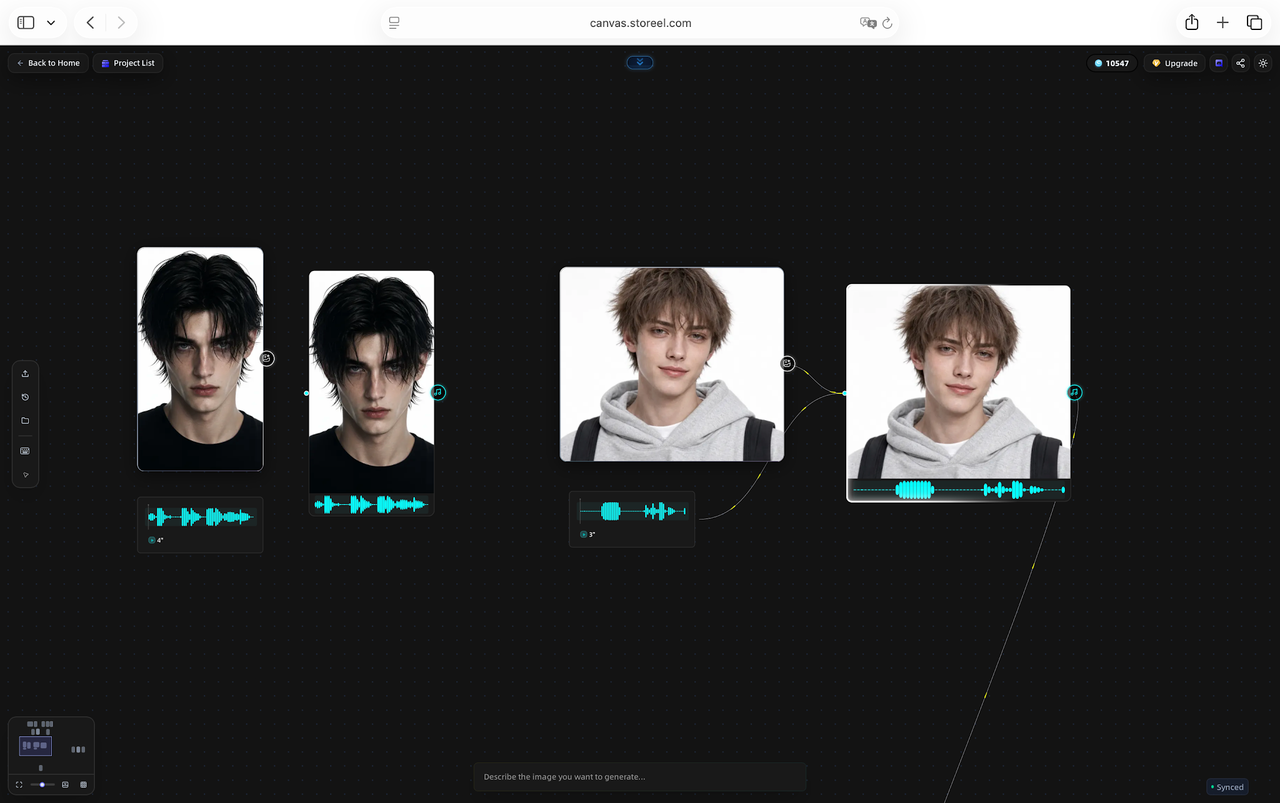
Step 5: Add Voiceover, Dialogue and Sound
Plan audio before you finish the visuals. Split it into dialogue, narration, ambient sound, music and sound effects.
Choose each character's voice for age, personality, speaking speed and language, and keep the same voice for that character across scenes. Check names and unusual words, because correct pronunciation does not always mean a convincing performance. Then check timing against the clips: if the delivery does not match the image, the scene will still feel unnatural.
StoReel Canvas includes voiceover alongside video generation. Check in the product which voice options your project can use.
Step 6: Edit and Assemble the Episode
Arrange the clips in story order. Review pacing, transitions, dialogue and continuity, then add subtitles and finishing touches. Watch the full episode once from start to finish before you export.
Some of these tasks, such as subtitles or detailed cuts, may need a separate editing tool depending on your workflow.
Step 7: Export and Prepare the Drama for Publishing
Review the final output and the export settings your tool offers. Then prepare the episode for the place you plan to publish or deliver it. Before you export, check:
Aspect ratio, resolution and file format (vertical formats such as 9:16 are common for short drama)
Episode length and file-size limits
Subtitle and safe-area requirements
Cover image, title and description requirements
AI-content disclosure rules
Music, voice and content licensing
Always watch a vertical episode on a phone before publishing, because platform buttons and captions can cover faces or subtitles.
Publishing and distribution happen after the creation steps above. Distribution and monetization are StoReel ecosystem capabilities, not buttons or steps inside StoReel Canvas. No publishing route guarantees views or revenue.
Creators can also look at commissioned work. Anyone can browse the Paid Projects list. Applying requires a paid subscription, and projects generally start with a trial piece of work. Terms vary by project.

How to Choose Tools for Each AI Short Drama Production Stage
Compare tools stage by stage, using the same criteria for each.
Stage | What to look for | Question to ask |
Script and story planning | Support for scenes and episode structure | Can I edit the output freely? |
Character references | Reusable references across shots | Do characters stay recognizable? |
Storyboard | Shot-level planning with references | Can I review frames before video? |
Image and video generation | Reference support, clip control | Can I regenerate one shot only? |
Voiceover | Consistent voice per character | Can I keep the same voice across scenes? |
Editing and export | Assembly, subtitles, format options | Does it meet my platform's requirements? |
StoReel Canvas covers scriptwriting, storyboarding, voiceover and video generation in one platform. Editing, subtitles and platform-specific export may need additional tools. Always check current plans, limits and features on each provider's official site before you commit.
See how the stages fit together in the AI short drama generator.
Common Problems and How to Improve Your Results
Characters change appearance between shots. Compare the clip with the reference, add the missing detail to the character description, and regenerate from the approved reference.
Generated scenes do not match the script. Check the shot description and the storyboard frame first. Revise the plan, then regenerate.
Motion or expressions look unnatural. Simplify the action, shorten the clip and change one variable at a time.
Dialogue and visuals are out of sync. Review timing clip by clip and adjust the clip length or the delivery.
The episode feels disconnected. Re-read the shot order against the story beats and remove shots that serve no purpose.
Frequently Asked Questions
How do you create an AI short drama from scratch?
Start with a short story idea, turn it into a script, define your characters, break the script into a shot list and storyboard, generate each clip, then add voiceover and sound before editing the clips into one episode. Work one shot at a time and review each result for continuity before moving to the next stage.
Can beginners create an AI short drama?
Yes, beginners can create an AI short drama by starting with one short episode and a small cast. Choose a single location, two or three characters and a clear conflict, then follow the same stages as a larger series: script, characters, storyboard, video, voiceover and editing. A small first project makes it easier to learn how each stage affects the next.
How do you keep AI characters consistent?
Define each character in writing, create reference images, and reuse those references in every shot. Record appearance, clothing and distinguishing details, then compare each generated clip against the reference before accepting it. Consistency checks are easier during storyboarding than after video generation, because fixing a still frame or description costs less than regenerating a clip.
What tools are needed to create an AI short drama?
No single tool is required. You need capabilities for each stage: story and script planning, character references, storyboarding, video generation, voiceover and sound, and editing. Some platforms cover several stages in one workflow, while others handle one stage each. StoReel Canvas covers scriptwriting, storyboarding, voiceover and video generation in one platform.
Can you create an AI short drama for free?
It depends on each provider's current plans and limits. Some tools offer free access with restrictions, while others require a subscription or credits, and terms can change. Check the pricing and usage terms of every tool in your workflow before you start. This guide does not promise free access to any tool, including StoReel Canvas.
Can StoReel Canvas support the AI short drama creation workflow?
StoReel Canvas covers scriptwriting, storyboarding, voiceover and video generation in one platform. That covers the main creation stages in this guide. Editing, subtitles and platform-specific export may need additional tools, and distribution and monetization are part of the wider StoReel ecosystem rather than steps inside StoReel Canvas.
How long does it take to make an AI short drama?
The time varies with script length, number of shots, number of characters, revisions and the tools you use. A short test scene takes far less work than a full episode or a series, and each regenerated clip adds time. No verified standard production time exists, so plan around your shot count and revision rounds.
Can you make money from an AI short drama?
No income is guaranteed from an AI short drama. Earnings depend on the platform, the audience, the contract terms and the quality of the work, and results vary widely. Review every payout term and rights clause before you commit to any route. StoReel Canvas lists Paid Projects, and their terms vary by project.
Start Creating Your AI Short Drama
Prefer to talk to other creators first? Join the StoReel Canvas Discord
You now have the full workflow: script, characters, storyboard, video, voiceover, editing and export. Start with one short episode and refine from there.
Create your StoReel Canvas account